GSC Intelligence

SEO Traffic Drop Diagnosis Tool

Compare equal Search Console periods, quantify lost clicks, and separate ranking loss, CTR erosion, visibility decline, and demand changes.

Temporary read-only browser access.

Uploaded files and GSC tokens are not saved in the WordPress database. Validate business value before irreversible SEO changes.

Identify lost clicks and likely areas to investigate from your own performance data.

SEO Traffic Drop Diagnosis

Find where search traffic fell and what to review

WebTrendSEO’s SEO Traffic Drop Diagnosis helps you investigate a decline using Search Console performance. Connect temporarily with read-only access or upload a CSV or ZIP export.

Compare the latest 28, 90, or 180 days with the preceding equal period. Filter by search type, device, or country and set a minimum previous-click threshold to focus on meaningful losses.

The report highlights lost clicks, percentage changes, impressions, CTR, and position. Use its page priorities and suggested recovery actions to guide investigation; the data alone cannot prove the cause of a decline.

Search Console or CSV input

28, 90, or 180-day comparisons

Equal preceding periods

Lost clicks by page

Percentage change

Impression changes

CTR and position changes

Device and country filters

Suggested recovery reviews
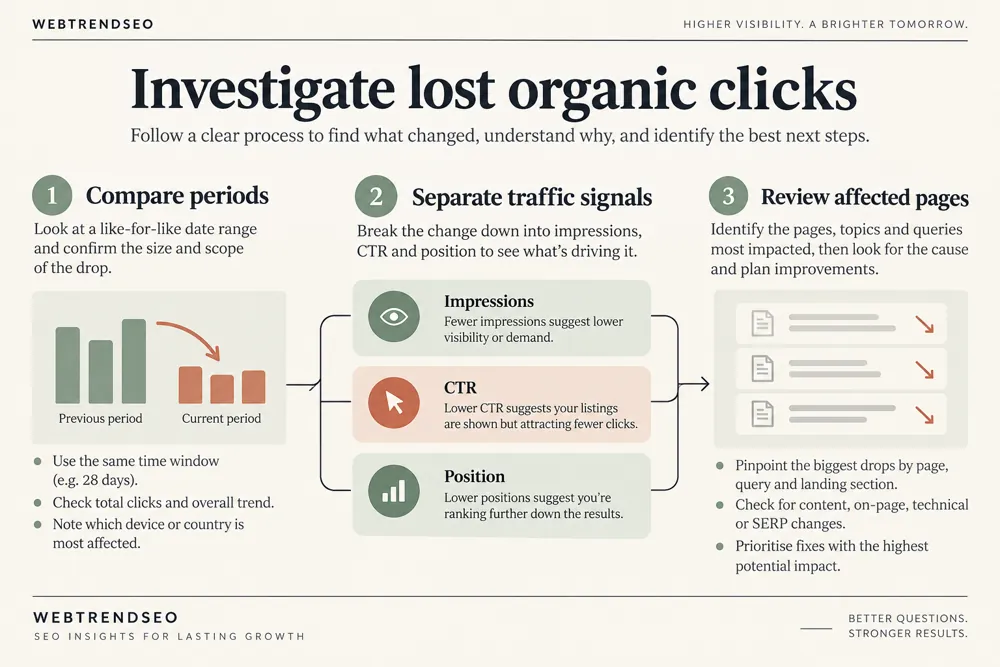
Traffic drop investigation workflow and practical review steps
How It Works

Compare two equal performance periods

Choose comparable periods and keep the same filters for both. Start with pages that account for the largest losses, then review the changes that could explain them.

Connect Search Console or upload a CSV or ZIP export
Choose a 28, 90, or 180-day comparison
Set search type, device, and country filters
Set a minimum previous-click threshold
Run the diagnosis and review declining pages
Investigate causes and track your recovery actions
WHY USE THIS TOOL

Start with the pages that lost the most clicks

A site-wide traffic chart tells you that something changed, but it does not show which pages explain the loss. Page-level comparisons help you focus the investigation.

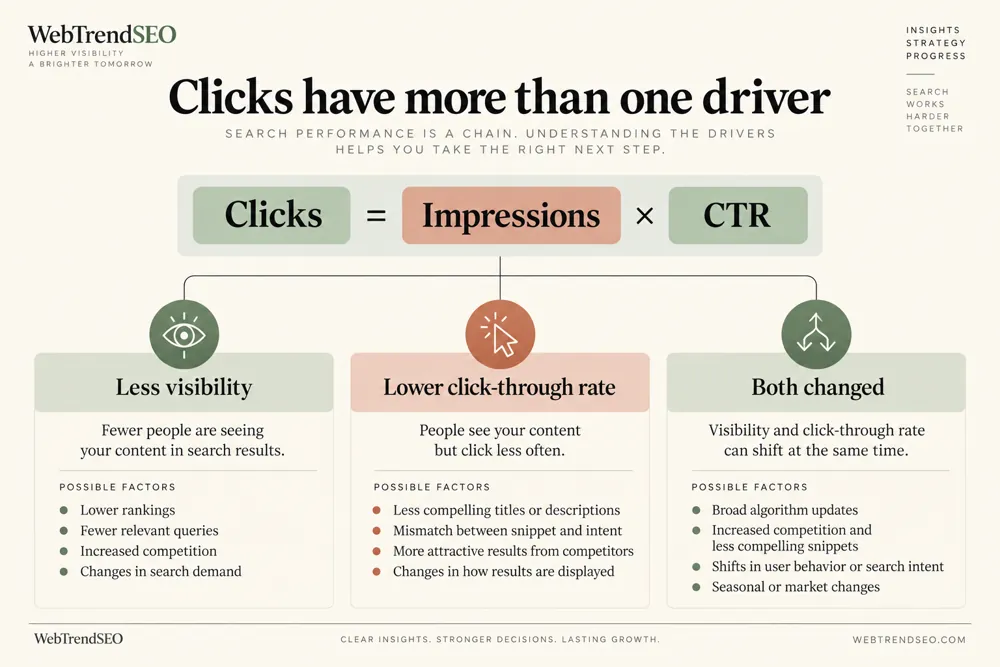
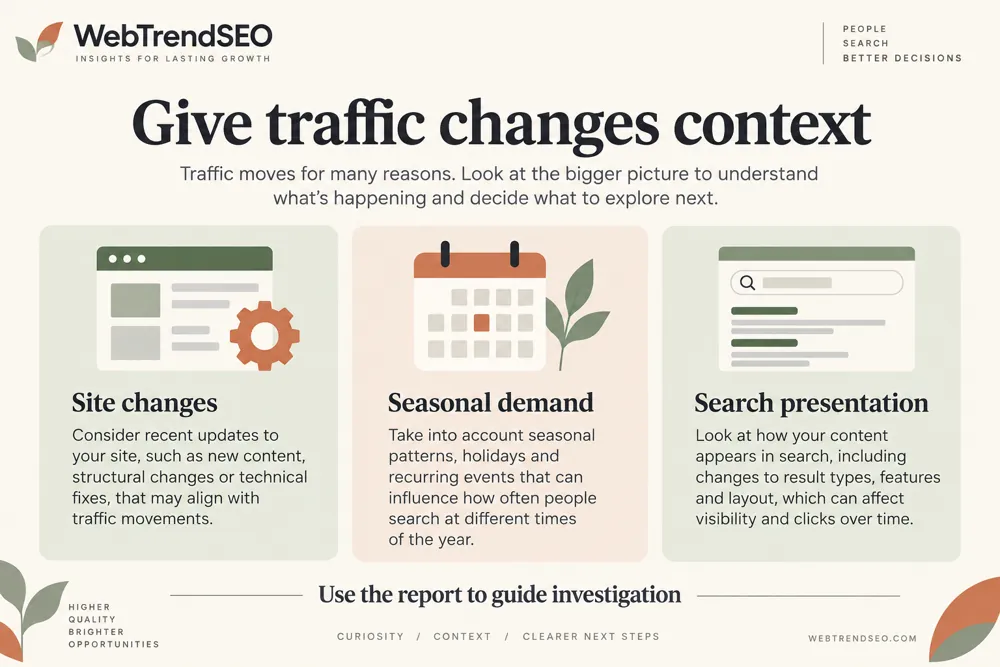
Use changes in clicks, impressions, CTR, and position together. Check seasonality, demand, page changes, indexing, and search-result competition before choosing a recovery action.

Traffic drop investigation signals and findings illustrated

Prioritize the largest click losses

Compare periods with equal lengths

Separate CTR shifts from impression declines

Review position changes alongside traffic

Focus on a device or country

Build a measured recovery plan

NEED HELP INVESTIGATING A DECLINE?

Turn traffic losses into a focused review plan

Bring the largest losses and their supporting metrics into an SEO review. Choose specific actions, record what changed, and compare performance again after enough time has passed.

Traffic drop investigation use cases for website owners and SEO teams
Use Cases

Who Can Use This Tool?

Use this tool when organic search traffic falls or when you need to explain a change to your team. Consistent filters and comparable periods make the findings easier to interpret.

Site owners investigating search losses
SEO teams prioritizing recovery
Agencies explaining client performance
Editors reviewing declining content
Store teams checking product-page losses
Developers reviewing release impacts
Marketing teams comparing device or country trends
Safe & Secure

Your Search Console data and privacy

Search Console access is temporary and read-only in your browser. Uploaded files and Search Console tokens are not saved to the WordPress database.

The diagnosis produces a report and suggested review actions. It does not change your pages or recover traffic automatically.

Free Tools

Other Free Tools From WebTrendSEO

GSC Content Decay Finder

Find declining pages in Search Console performance data.

GSC CTR Opportunity Finder

Review Search Console queries with potential click improvements.

Indexability Checker

Check robots directives, canonical signals, and indexing restrictions.

Practical SEO tools from WebTrendSEO

TRAFFIC DROP FAQ

Traffic drop diagnosis questions answered

Understand the comparison periods, inputs, and limits of a traffic diagnosis before deciding what to change.

It compares the latest 28, 90, or 180 days with the preceding equal period. The report highlights page-level changes in clicks, impressions, CTR, and position.

Yes. You can upload a CSV or ZIP export, or connect Search Console temporarily with read-only access in your browser.

No. It highlights patterns and suggests areas to investigate. Check seasonality, demand, page changes, technical issues, and search-result competition before assigning a cause.

Yes. You can filter by search type, device, or country and set a minimum previous-click threshold. Keep the same filters across both periods.

No. It reports losses, page priorities, and suggested review actions. You decide what to change and measure performance afterward.

No. Uploaded files and Search Console tokens are not saved to the WordPress database. Search Console access is temporary and read-only in your browser.

COMPARE YOUR PERFORMANCE

Investigate your search traffic decline

Compare your performance, identify the pages behind the decline, and investigate the strongest signals first. Record each action so you can measure its effect.