Performance & Core Web Vitals

Lighthouse Report Explainer

Turn PageSpeed or Lighthouse JSON into plain-language priorities and a practical developer action list.

Uploaded files and GSC tokens are not saved in the WordPress database. Validate business value before irreversible SEO changes.
Run a live mobile or desktop test when available, or upload a Lighthouse JSON report to review scores, core metrics, failed audits, and recommended next steps.

Lighthouse Report Explainer

Turn Lighthouse Data Into Clear Priorities

WebTrendSEO’s Lighthouse Report Explainer translates technical audit data into a focused review for site owners, SEO teams, and developers.

Run a live PageSpeed Insights test for a public URL when Google’s service is available, or upload a Lighthouse JSON report you already generated. Choose mobile or desktop context and a minimum priority level to control which findings appear.

The report summarizes category scores, core performance metrics, failed audits, and practical developer actions. Recommendations are diagnostic guidance—not guarantees—and should be validated on a staging site before important production changes.

Performance Score

Accessibility Score

Best Practices Score

SEO Score

Core Performance Metrics

Highest-Impact Failed Audits

Priority-Based Filtering

Plain-Language Explanations

Developer Action List
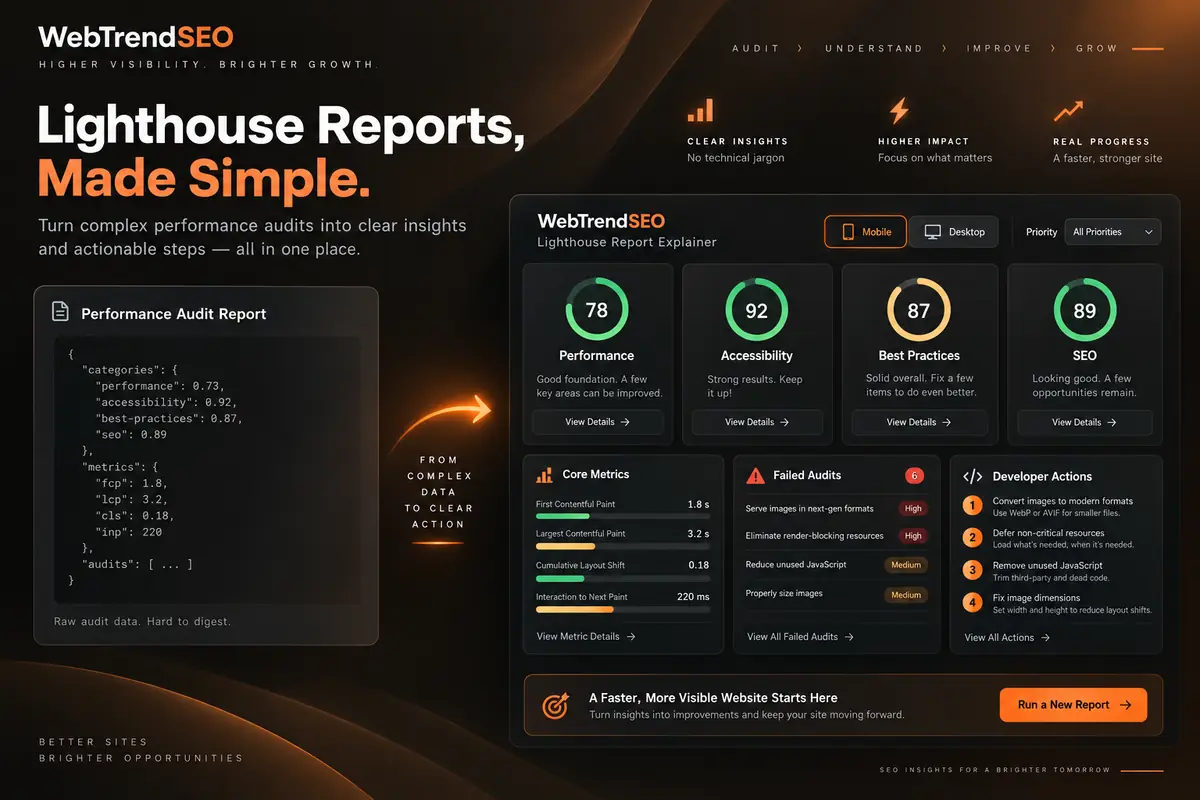
Lighthouse report dashboard explaining performance, accessibility, best practices, SEO, core metrics, and failed audits
HOW IT WORKS

How to Use the Lighthouse Report Explainer

Choose a report source, set the viewing context, and review the evidence before assigning development work.
Choose a Report Source

Use a live PageSpeed test or select Upload JSON.

Enter a URL or Upload JSON

Provide one public page URL or a valid Lighthouse report file.

Select Mobile or Desktop

Match the strategy to the experience you need to review.

Set the Priority Threshold

Show all findings or filter to higher-priority failed audits.

Explain the Report

Generate scores, metric context, audit findings, and suggested actions.

Validate Before Implementation

Confirm each recommendation, test changes, and monitor the page again.

WHY USE OUR LIGHTHOUSE REPORT EXPLAINER?

Focus on Evidence Before Changing Your Site

Lighthouse reports contain useful diagnostics, but raw audit names and long opportunity lists can be difficult to translate into an implementation plan.

This explainer groups the most relevant evidence, adds plain-language context, and helps you separate urgent technical work from lower-priority suggestions. Use the output to discuss fixes with developers and retest after changes.

For deeper performance, crawlability, and site-health support, explore WebTrendSEO’s technical SEO services.
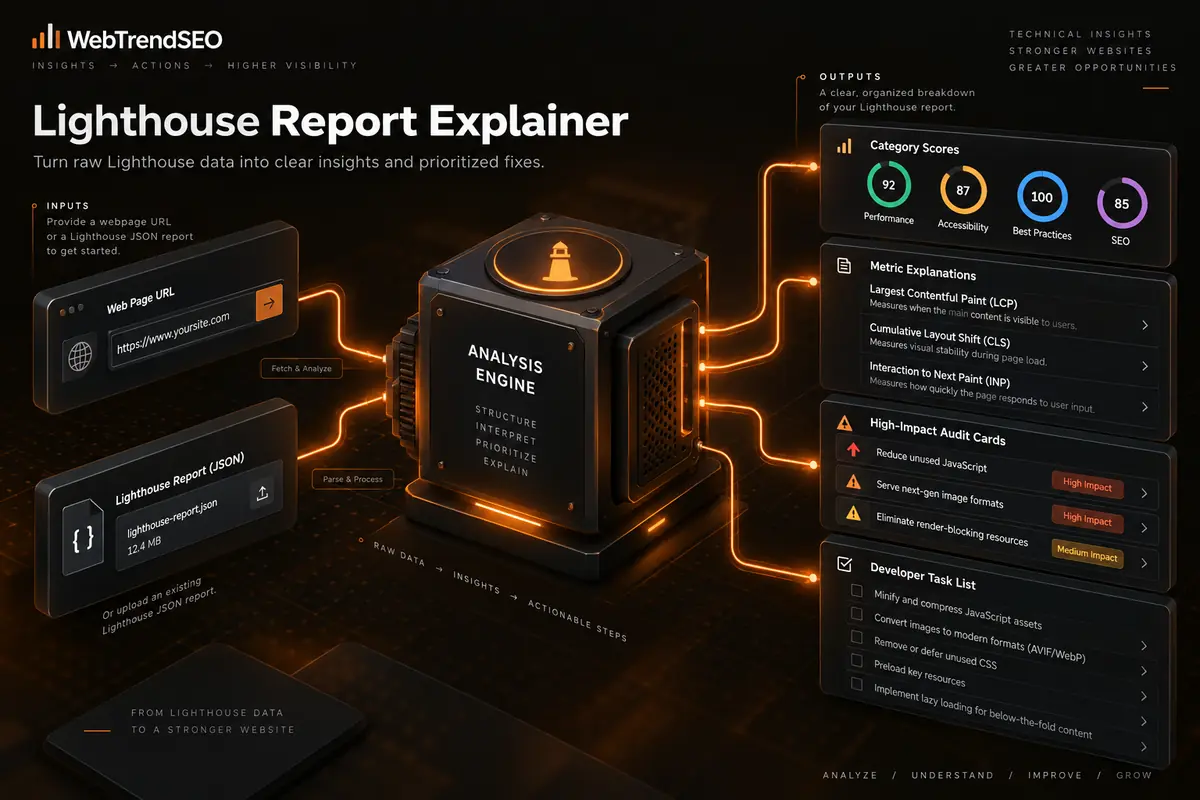
Page URL and Lighthouse JSON flowing through an analysis engine into scores, metric explanations, audit priorities, and developer tasks

Live Test or JSON Upload

Mobile and Desktop Context

Priority-Based Filtering

Plain-Language Guidance

Developer-Focused Actions

No Automatic Site Changes

TURN REPORTS INTO ACTION

Understand What to Fix First

Explain one Lighthouse report, review the highest-priority findings, and turn technical audit language into a practical discussion with your developer or SEO team.
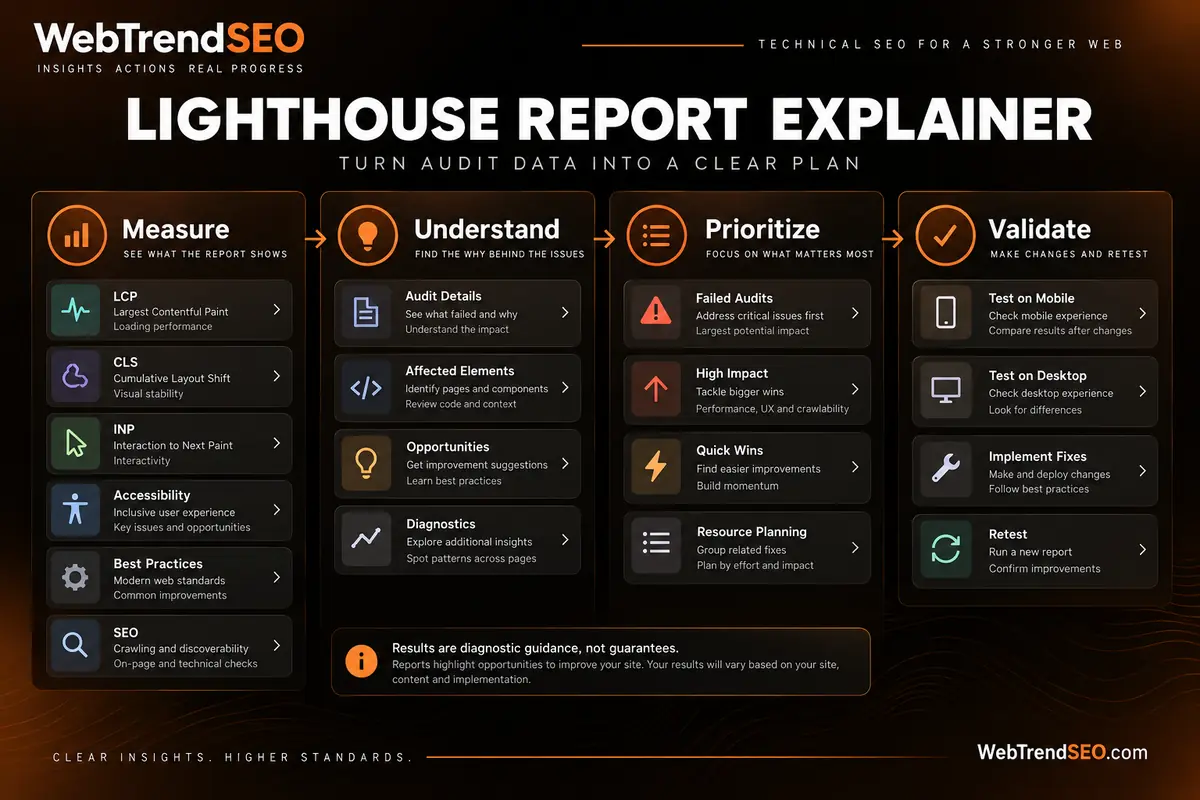
Lighthouse performance triage board for measuring, understanding, prioritizing, and validating technical findings
USE CASES

Who Can Use This Tool?

Use the explainer when you need to translate a Lighthouse or PageSpeed report into a concise review for planning, development, quality assurance, or client communication.
Website Owners Reviewing Performance
SEO Consultants Prioritizing Audits
Developers Translating Lighthouse Findings
Agencies Preparing Client Recommendations
Content Teams Before Page Launches
Ecommerce Teams Checking Key Templates
Site Redesign and Migration Reviews
INPUT AND UPLOAD NOTICE

Review Technical Data Before You Share It

A live test submits the public page URL to Google PageSpeed Insights. The tool interface states that uploaded files are not saved in the WordPress database.

Before uploading a Lighthouse JSON file, review it for information you do not want to share. Do not upload passwords, private customer data, access tokens, or confidential internal notes.
FREE TOOLS

Other Free Tools From WebTrendSEO

Mobile Simulator

Preview how a public webpage displays on mobile.

WebP Converter

Convert and resize your images into compact WebP files.

SEO Site Scan

Start a broader SEO review with a focused site scan.

Image SEO Checker

Review image alt text and image-related page signals.

Page Audit Tool

Review SEO signals on an individual public page.

CMS Detector

Identify the content management system used by a website.

Clearer performance decisions start with evidence, context, and realistic priorities. Built by WebTrendSEO.

FAQS

Lighthouse Report Explainer FAQs

Learn what the tool reads, how its live and upload options work, and how to interpret technical recommendations responsibly.
A Lighthouse Report Explainer turns PageSpeed Insights or Lighthouse audit data into a clearer summary of category scores, performance metrics, failed audits, priorities, and practical actions. It helps you understand a report; it does not create guaranteed outcomes.
Choose Run live test and enter one public URL, or choose Upload JSON and select a Lighthouse report file. Set mobile or desktop strategy and a minimum priority, then generate an explanation from the available audit data.
The report can summarize Lighthouse categories such as Performance, Accessibility, Best Practices, and SEO, along with core performance metrics and failed audits included in the source report. The exact output depends on the data provided by PageSpeed Insights or the uploaded JSON.
Yes. You can use the explainer without mandatory signup. Live tests depend on Google PageSpeed Insights availability and quota; uploading an existing Lighthouse JSON report provides an alternative when a live test is unavailable.
Lighthouse is a diagnostic snapshot, not a complete measurement of user experience, traffic, rankings, or business impact. Results can vary by device, network, test environment, and page state. Prioritize findings alongside real-user data, technical context, and business value.
No. It does not edit code, change hosting settings, delete content, add redirects, or deploy fixes. Review each recommendation with a qualified developer or SEO professional, test changes safely, and run another report to measure the effect.
LET’S TALK

Turn Lighthouse Findings Into a Technical SEO Plan

A report explains symptoms; implementation requires context and careful testing. WebTrendSEO can help validate priorities, investigate underlying technical issues, and coordinate improvements around performance, crawlability, usability, and organic search.